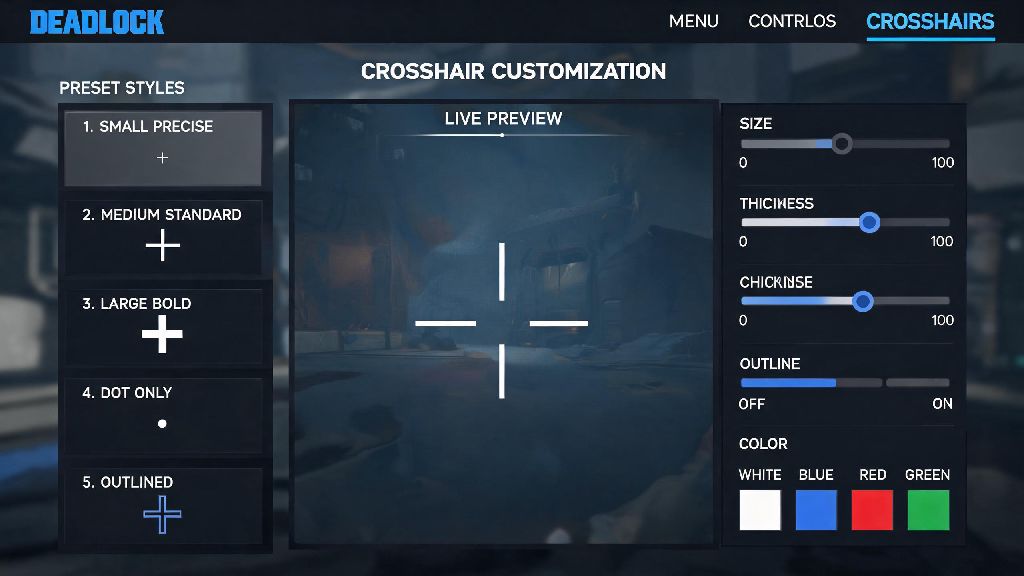
If you've ever missed a clean headshot in Deadlock because your crosshair blended into the map or was too big to track fast-moving heroes, you're not alone. Most new players skip customizing their crosshair at first, but this tiny setting can make a bigger difference to your win rate than almost any other quick tweak. That's why we put together this no-nonsense walkthrough for how to change crosshair in Deadlock, with tested settings that work for every playstyle, from aggressive duelists to support mains.
How to Change Crosshair in Deadlock: In-Game Step-by-Step Process
You don't need any third-party tools or config file edits to adjust your crosshair, which is a huge relief for players worried about account bans. All customization options are built directly into the base game, and you can make changes even mid-match if you realize your current setup isn't working for a specific map. Once you know how to change crosshair in Deadlock, you can tweak it as often as you want without worrying about breaking any game rules.
First, Open the settings menu by hitting Escape or the gear icon in the top right corner of the main menu or in-match pause screen. Next, Navigate to the "Gameplay" tab, then scroll down to the "Crosshair" section, which is grouped with other aim-related settings like sensitivity and aim assist. Finally, Adjust your settings in real time using the preview window that pops up on the right side of the screen, so you can see exactly how your crosshair will look mid-fight before saving changes.
You can test changes right in the practice range without leaving the settings menu, which is a huge time saver that a lot of players miss. Just click the "Test Crosshair" button at the bottom of the crosshair section, and you'll be dropped straight into the range to try out your new setup against stationary and moving bots.
Key Crosshair Customization Options Worth Adjusting
You don't have to tweak every single setting in the crosshair menu to get a great setup. Most of the advanced options only make tiny, almost unnoticeable changes, but these core options have the biggest impact on your in-game performance:
Don't copy pro settings blindly, by the way. What works for a player with a 240Hz monitor and 1600 DPI might be completely unreadable on your 1080p laptop screen. Test each adjustment for 2-3 practice range rounds before you take it into a ranked match.
Common Crosshair Mistakes to Avoid
I've seen so many new players waste hours tweaking their crosshair to look cool, only to realize it's actively hurting their performance. The biggest mistake I see is using a crosshair with animated elements or custom images. These might look fun in montages, but they add unnecessary visual noise and can distract you when you're trying to track a fast-moving enemy. The game doesn't support custom animated crosshairs natively anyway, so any tool that adds them will likely trigger the anti-cheat system.
Another common mistake is changing your crosshair every time you lose a match. It takes at least 5-10 matches to build muscle memory for a new crosshair, so switching it constantly will only throw off your aim and make it harder to track your progress. Stick with one setup for at least a week before you decide it's not working for you.
Also, don't use a crosshair that's the same color as your main hero's ability effects. If you main a hero that throws bright green smoke, for example, a green crosshair will disappear completely when you use your ability mid-fight. If you play on a lower-end PC, turning off crosshair transparency can help boost your frame rate slightly, as transparent elements require slightly more processing power to render.
How to Test if Your New Crosshair is Working for You
So you've adjusted all your settings and saved them, but how do you know if it's actually an improvement over the default? The best way is to spend 10 minutes in the practice range first, testing both long-range headshots and close-quarters tracking against moving bots. Pay attention to whether you can see the crosshair clearly at all times, even when you're standing in front of bright walls or busy map backgrounds. Now that you know how to change crosshair in Deadlock, you can make small adjustments every few weeks if you feel like your aim is slipping, just don't overdo it.
Next, play 2-3 unranked matches with the new crosshair before you take it into ranked. Don't just look at your kill count, though. Track how many times you miss shots because you lost track of your crosshair, or because the crosshair was too big to line up a headshot. If you notice yourself adjusting to the crosshair naturally within the first match, it's a good fit. If you're still squinting to find it after three matches, go back and tweak the color or size a bit.
One trick I swear by: take a screenshot of your crosshair over a common map background, then pull it up on your phone when you're not playing. If you can spot the crosshair in the screenshot immediately, it has enough contrast for real matches. If you have to look for it for more than a second, it's too low-contrast and you need to pick a brighter color or add a thicker outline.
At the end of the day, the best crosshair for you is the one you don't have to think about. It should sit quietly on your screen, easy to find when you need it, but unobtrusive enough that it doesn't distract from the fight. We walked through everything you need to know about how to change crosshair in Deadlock, but don't be afraid to experiment with small tweaks as you get more comfortable with the game. Even a tiny adjustment to size or color could be the difference between winning that next close 1v1 and going home with a loss.