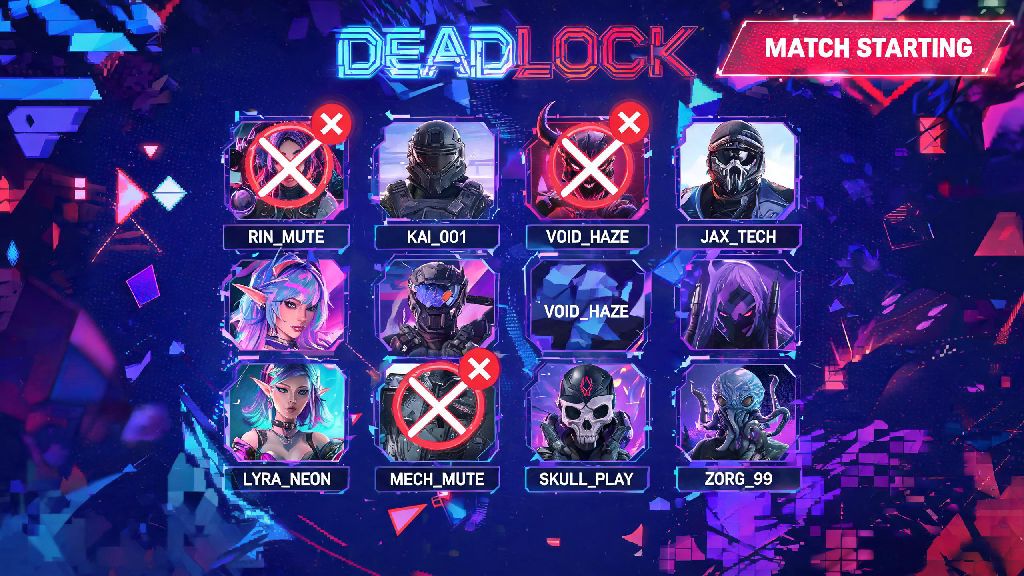
If you’ve spent any amount of time playing Deadlock’s fast-paced competitive matches, you’ve probably run into a player who ruins the fun for everyone else. Maybe they’re spamming slurs in text chat, blaring loud music through their mic, or screaming at teammates for small mistakes. These distractions don’t just kill the vibe — they can make you miss critical callouts or lose focus during a team fight that decides the entire match. That’s why learning how to mute people in Deadlock is one of the most valuable quality of life skills you can pick up for the game.
Pre-Match: How to Mute People in Deadlock From the Lobby
You don’t have to wait until a match starts to silence annoying players, if you already know you don’t want to interact with someone in your lobby. The pre-match lobby screen shows every player queued for your game, with their in-game name, profile icon, and current party affiliation right at the top of the screen. To mute someone here, just click their profile name to open the quick action menu, then select the mute option of your choice.
You can choose to mute only voice chat, only text chat, or both, depending on what’s bothering you. For example, if someone is spamming meme links in lobby text chat but you don’t have a problem with their voice, you can block only their text messages without cutting off potential callouts later. Pre-match mute settings stay active for the entire duration of your game, so you won’t have to adjust them again once the match loads in.
But there’s a small catch here: if the player leaves the lobby before the match starts, your mute setting for them won’t save automatically. You’ll have to mute them again if you get matched with them in a later game, unless you add them to your permanent mute list, which we’ll cover later.
In-Game Methods to Mute Specific Players Mid-Match
Most of the time, you won’t know a player is toxic or annoying until the match is already underway. Deadlock has multiple fast, easy ways to mute people without pulling you away from the action for too long. The most common method is opening the in-game scoreboard, which you can pull up by holding the default Tab key on PC. Every player on both teams is listed on the scoreboard, with small icons next to their name for muting, reporting, and adding as a friend. This is the fastest way to handle disruptive behavior, and it’s a core part of knowing how to mute people in Deadlock without wasting time.
The one-tap voice mute function is the fastest option if someone’s mic is causing problems. Just click the small speaker icon next to their name, and their voice will be cut off immediately. If you also want to block their text messages, you can right click their name to open the full action menu and select the text mute option. There’s also a global mute all button at the top of the scoreboard if you want to silence every player in the match at once. I’ve had matches where three different players were spamming garbage in chat at once, and the /muteall command saved me from throwing the game out of frustration.
If you’re in the middle of a fight and don’t have time to navigate the scoreboard, you can use text chat commands to mute someone in seconds. We’ve put together a list of the most useful quick mute commands for fast access:
One of the best parts of Deadlock’s mute system is that it keeps your settings hidden from other players. No one will get a notification that you’ve muted them, so you don’t have to worry about escalating conflict with a toxic player. Separate mute controls for voice and text chat also let you customize your experience exactly how you want it, instead of forcing you to block all communication from a player entirely.
Permanent Mute Settings for Repeat Offenders
If you play Deadlock regularly, you’ll probably run into the same toxic players multiple times, especially if you queue in the same rank bracket at the same time of day. Muting them every single time you match together gets annoying fast, which is why Deadlock has a built-in permanent mute list for players you never want to interact with again. Permanent mutes are a huge time saver for regular players, and they’re a natural extension of knowing how to mute people in Deadlock for long-term quality of life.
To add someone to your permanent mute list, you can find them in your “recent players” tab in the main menu, or right click their name at the end of a match from the score screen. Select the “mute permanently” option, and the game will automatically mute both their voice and text chat every time you get matched with them in the future, no extra steps required. This setting works across all match types, from casual quick play to high-stakes competitive ranked games.
There are a few important things to note about permanent mutes, though. First, permanent mute lists are account-bound, so they won’t carry over if you make a new account or play on a different platform. Second, muting someone permanently doesn’t stop you from getting matched with them — it just blocks their communication. If you want to avoid playing with someone entirely, you’ll need to use the game’s block feature instead.
You can also remove players from your permanent mute list at any time from the settings menu. This is useful if you muted someone a long time ago and want to give them a second chance, or if you accidentally added a friend to the list by mistake.
Common Mistakes to Avoid When Muting Players in Deadlock
While muting players is a simple process, there are a few common mistakes that can cause headaches later if you’re not careful. The most frequent one is accidental muting of friendly players when you’re navigating the scoreboard mid-fight. It’s easy to click the wrong speaker icon when you’re in a hurry, and you might not realize you’ve muted your support until they’re trying to tell you a gank is coming for your lane.
To avoid this, take half a second to double check the name next to the icon you’re clicking before you mute someone. You can also check your active mute list at any time from the in-game settings menu to make sure you haven’t muted anyone you want to hear from. Another common mistake is muting all players by default in competitive matches, which cuts you off from critical callouts that can win you games. Unless you’re dealing with an extremely toxic lobby, it’s usually better to only mute the specific players causing problems, instead of blocking all communication entirely.
Finally, don’t forget to check your permanent mute list every few months if you play regularly. It’s easy to add people to the list when you’re frustrated after a bad match, but you might end up muting people who have changed their behavior, or even friends who changed their in-game name and you don’t recognize anymore. A quick check every couple of weeks will keep your list clean and avoid unnecessary communication blocks.
At the end of the day, Deadlock is supposed to be fun, and you don’t have to put up with annoying or toxic players ruining your experience. Whether you’re dealing with a spammer in a casual match or a rager in your ranked promotion game, knowing how to mute people in Deadlock lets you take control of your gameplay experience with just a few clicks. You don’t owe anyone your time or attention, and using the mute tools built into the game is the easiest way to keep your matches focused, low-stress, and enjoyable every time you queue up.