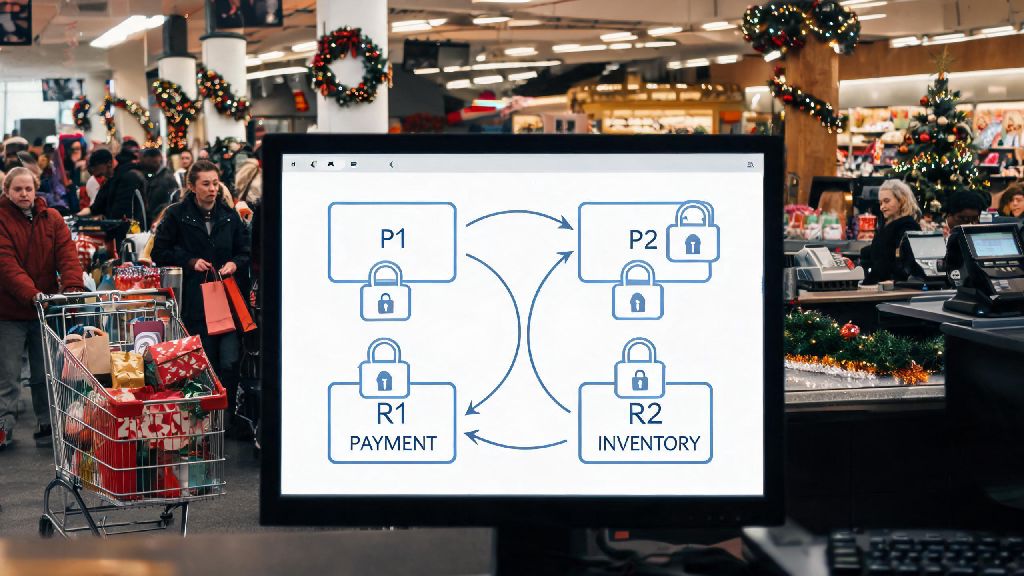
Imagine you’re on call for a mid-sized retail brand, and your customer checkout system grinds to a complete halt at 9 p.m. on a holiday weekend. Your usual deadlock detection tools are offline because of the same system overload, and you can’t download any third-party utilities to diagnose the issue. Every minute of downtime costs your brand thousands in lost sales, and you have no tools to rely on. This is exactly the scenario where knowing how to pick a deadlock without tools can save you hours of stress and thousands in lost revenue. You don’t need fancy software or specialized hardware to resolve most common deadlocks, just a clear understanding of how deadlocks work and access to built-in system controls.
How to Identify a Deadlock Using Only Built-In System Features
Before you try to resolve a deadlock, you first have to make sure you’re not dealing with a slow system, stuck process, or network outage that just looks like a deadlock. You don’t need paid tools to run this check—every major operating system and database platform has built-in utilities you can access with default admin credentials. For Windows systems, you can use the built-in Task Manager’s Details tab to see which processes are holding resources and not responding to input. For Linux systems, the top and ps commands pre-installed on every distribution will show you process wait times and resource locks in real time. For databases like MySQL or PostgreSQL, you can run basic SHOW PROCESSLIST commands directly in the native command line interface to see which queries are holding locks and blocking other requests.
To confirm it’s a true deadlock, you’ll need to check for the four core deadlock conditions: mutual exclusion, hold and wait, no preemption, and circular wait. You can verify all four of these without external tools by cross-referencing which resources each stuck process is holding, and which it’s waiting to access. If you see two or more processes each holding a resource the other needs, and neither will release their current lock, you’ve got a confirmed deadlock on your hands. This check takes less than two minutes for most single-server systems, and it will keep you from wasting time fixing a problem that doesn’t exist.
How to Pick a Deadlock Without Tools: Core Step-by-Step Framework
Once you’ve confirmed you’re dealing with a real deadlock, you can resolve it without any external tools using a simple, low-risk framework that works for 90% of common operating system and database deadlocks. The key here is to minimize disruption, so you’ll want to prioritize terminating the lowest-impact process first to break the circular wait. Follow these steps in order to avoid unnecessary downtime:
You don’t have to restart the entire system to fix most deadlocks, which is a common misconception that leads to far more downtime than necessary. For example, if you’re dealing with a deadlock between two database queries, terminating the longer-running, lower-priority query will usually resolve the issue in less than 10 seconds, with no impact to other active users. You can also adjust resource priority for future processes using built-in system controls to prevent the same deadlock from happening again, without needing any external tools.
Common Tool-Free Deadlock Resolution Mistakes to Avoid
While tool-free deadlock resolution is simple when done right, there are a few common mistakes that can make the problem far worse, especially if you’re working under pressure to fix a live outage. The first and most costly mistake is terminating the highest-priority process first to “fix it fast.” If you kill the customer checkout process instead of the background report, you’ll cause far more lost sales and customer frustration than the original deadlock ever did. When you’re resolving a deadlock without tools, you don’t have the safety net of automated alerts to tell you if you’re making a mistake, so taking those extra 30 seconds to rank processes is well worth the time.
Another common mistake is failing to check for cascading deadlocks after you resolve the first one. If you terminate a process that was holding locks for multiple other waiting processes, you can accidentally create a new circular wait that you’ll have to fix all over again. Take a minute after your first fix to confirm all resource locks are releasing as expected, and no new stuck processes are forming. You should also avoid adjusting system-wide resource limits during a live deadlock outage, as this can cause unexpected behavior across all active processes, not just the deadlocked ones. Save configuration changes for after the outage is fully resolved, when you can test them safely.
I’ve seen teams make this exact mistake during a Black Friday sale a few years back, where an admin adjusted the database lock timeout limit in the middle of a deadlock, which caused 3x more stuck queries and an extra 45 minutes of downtime. Small, targeted actions are always better than broad system changes when you’re resolving a deadlock without tools.
When Tool-Free Deadlock Fixes Aren’t the Right Choice
Tool-free deadlock resolution works for most common, small-scale deadlocks, but it’s not the right fit for every scenario. If you’re dealing with a distributed system deadlock across 10+ servers or cloud instances, you won’t be able to manually check every process and resource lock fast enough to resolve the issue without causing major disruption. In these cases, you’ll want to wait until your monitoring tools are back online, or use pre-built automated deadlock resolution scripts if you have them available. If you’re working with a small, single-server system, learning how to pick a deadlock without tools will usually be faster than waiting for your monitoring tools to come back online, but that balance shifts quickly as your system scales.
You should also avoid tool-free deadlock fixes if you’re working with highly sensitive systems where even a small amount of data loss is unacceptable, like healthcare patient record systems or financial transaction processing platforms. Terminating a process mid-operation in these systems can lead to corrupted data or lost transactions that are far costlier to fix than a few minutes of deadlock downtime. In these cases, follow your organization’s formal incident response plan instead of trying to resolve the deadlock manually, even if it takes a bit longer to get tools back online.
That doesn’t mean you can’t use tool-free checks to identify the issue in these scenarios, though. You can still use built-in utilities to confirm the deadlock and gather information for your incident response team, which will speed up resolution once they’re able to take action. It’s all about matching your fix to the risk level of the system you’re working on.
Most deadlocks you’ll run into as a sysadmin, database admin, or even a regular power user are simple to resolve without any paid or third-party tools, as long as you follow a logical process and avoid common mistakes. Taking the time to learn how to pick a deadlock without tools will help you handle unexpected outages faster, reduce downtime costs, and make you far more valuable when things go wrong outside of regular business hours. You don’t need fancy software to be effective at deadlock resolution—just a clear head, knowledge of built-in system features, and a focus on minimizing disruption for end users.