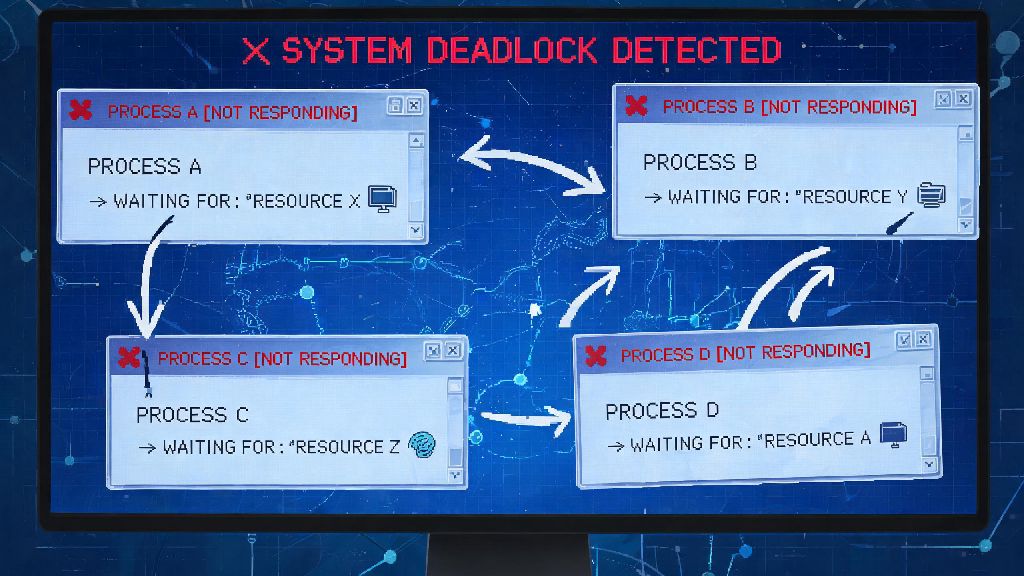
Have you ever been mid-way through saving an important work project, only to have your apps freeze completely? You try closing windows, hitting force quit, even waiting 10 minutes for things to unfreeze, but nothing moves. Most people write this off as a random system glitch, but if you’ve got multiple apps accessing shared resources at the same time, you might be facing what is a deadlock in os. Unlike a regular app crash that only affects one program, a deadlock locks up all involved processes entirely, because each is waiting for a resource the other is holding, with no way to move forward. This guide breaks down exactly how deadlocks work, how to spot them before they cause lost work, and simple steps to prevent them from happening in the first place.
What is a deadlock in OS, and how is it different from a regular system freeze?
It’s easy to confuse deadlocks with regular app crashes or system freezes, but they’re a very specific state that only occurs when four core conditions are all met at the same time. A single app crashing because of a code bug or too much RAM usage isn’t a deadlock, even if it makes your whole system slow for a minute. A deadlock only happens when every process in a group is stuck waiting for a resource that another process in the same group is holding, so no process can ever finish its task.
The four required conditions for a deadlock (called Coffman Conditions) are:
All four of these conditions have to be present for a deadlock to occur, not just one or two. I once spent 3 hours troubleshooting a server crash for a small e-commerce client where their inventory update tool and payment processing tool got stuck in a deadlock. The inventory tool was holding the inventory database lock and waiting for access to the payment log, while the payment tool was holding the payment log lock and waiting for the inventory database. All four conditions were met, so nothing moved, and we lost 12 minutes of sales before we could restart both services. If you run a small business with an on-premise server, knowing what is a deadlock in os can save you thousands of dollars in lost sales from unexpected downtime.
Common real-world impacts of OS deadlocks you might not notice
Not all deadlocks cause a full system crash that forces you to hit the restart button. A lot of times, they’re small, background deadlocks that just slow down your system or cause minor annoyances that you might write off as regular glitches. For example, if your cloud storage sync tool and your antivirus get into a deadlock over a single file, you might notice that file won't sync, or your antivirus scan is stuck at 98% for hours, but the rest of your system works fine. You might not even realize it’s a deadlock unless you go digging through your task manager.
For personal devices, these small deadlocks are mostly just frustrating, but for enterprise systems, deadlocks can cause catastrophic losses. A bank's transaction processing system hitting a deadlock can block thousands of deposits and withdrawals, leading to customer complaints, lost trust, and even compliance fines if the outage lasts long enough. Unplanned downtime is the biggest cost of unaddressed deadlocks for enterprise teams, with recent data showing the average cost of server downtime is $9,000 per minute for mid-sized businesses.
Another hidden impact is data corruption risk. If you force restart a system to break a deadlock, you might lose any unsaved work from the processes involved, or corrupt files that were being written to when the deadlock happened. I’ve had personal experience with this too: I once lost 3 hours of video editing work when I force restarted my laptop mid-deadlock, because the editing tool was in the middle of saving a draft when I cut power. Once you understand what is a deadlock in os and the four required conditions, you can adjust your regular workflow to eliminate one or more of those conditions almost effortlessly.
How to detect a deadlock on your system in 3 simple steps
You don't need to be a system admin or have a computer science degree to spot a deadlock, you just know what to look for. These three steps work for both personal laptops and small business servers, and take less than 2 minutes to run:
First, check if the frozen processes are using system resources. If a process is truly frozen from a regular crash, it'll usually drop to 0% CPU and RAM usage in your task manager or activity monitor. A deadlocked process is still active, waiting for resources, so it'll show small but consistent resource usage, even if it’s not visibly doing anything on your screen.
Second, try closing the affected processes one by one. If you can't close a process even through the task manager's force quit function, that's a common sign of a deadlock, because the process is holding a resource the system won't take away. The system can’t force quit the process without risking data loss, so it’ll ignore the force quit request until the process releases its held resources on its own.
Third, check for recent activity that involves shared resources. Did you just send three print jobs at once? Did you start a cloud sync while a full system backup was running? If the freeze lines up with two or more apps accessing the same shared resource, you're almost certainly dealing with a deadlock. I always keep an eye on my external SSD activity light when I'm transferring files while editing video. If the light stops blinking completely but both my file transfer window and video editor are showing active status, I know I've got a deadlock between the two apps before they even freeze my screen. It's easy to write off these small freezes as regular glitches, but once you know what is a deadlock in os, you can spot the pattern immediately.
For enterprise server teams, there are automated detection tools that monitor process and resource chains to spot circular waits before they cause outages, but for personal use, these three steps work 90% of the time.
Proven methods to resolve and prevent OS deadlocks long-term
If you’re already dealing with an active deadlock, the fastest fix for personal devices is to restart your whole system if you can’t force quit the affected processes. That breaks all resource locks automatically, though you will lose any unsaved work in the deadlocked processes. For server systems, you can use targeted preemption for non-critical processes, but you have to be careful to only target processes that aren’t actively writing to files, to avoid data corruption.
Prevention is always better than fixing a deadlock after it happens, and the good news is you don’t need any fancy tools to prevent most deadlocks. First, avoid running multiple apps that access the same shared resource at the same time if you can. For example, don't run a full system backup while you're editing large video files stored on the same drive, and don’t send 10 large print jobs at the exact same time if you only have one printer connected.
If you manage any servers for work or personal projects, enable deadlock avoidance protocols on your system. These protocols check if a resource request will lead to a deadlock before granting access, so they block requests that would create the circular wait condition. Most modern server operating systems have these protocols built in, you just have to turn them on in your system settings.
For teams running custom software, use resource scheduling systems that assign resources in a specific, fixed order, so processes can't get into a circular wait. For example, if all apps have to request access to the database before they request access to the file log, you can't have one app holding the log waiting for the database and another holding the database waiting for the log. A common mistake people make is assuming deadlocks only happen on old or slow systems. I've seen deadlocks on brand new high-end gaming PCs and enterprise cloud servers alike, because it's not about hardware power, it's about how processes are scheduled to access shared resources.
At the end of the day, understanding what is a deadlock in os doesn't just help you fix frustrating freezes faster, it helps you avoid them entirely before they cause lost work or costly downtime. You don't need a computer science degree to spot the signs, and the prevention steps are simple enough for even casual computer users to implement. Next time your system freezes and force quit isn't working, take a minute to check if you're dealing with a deadlock instead of just immediately restarting and losing unsaved work. Small adjustments to your regular workflow can eliminate almost all common deadlock risks for personal use, and save you hours of frustration down the line.