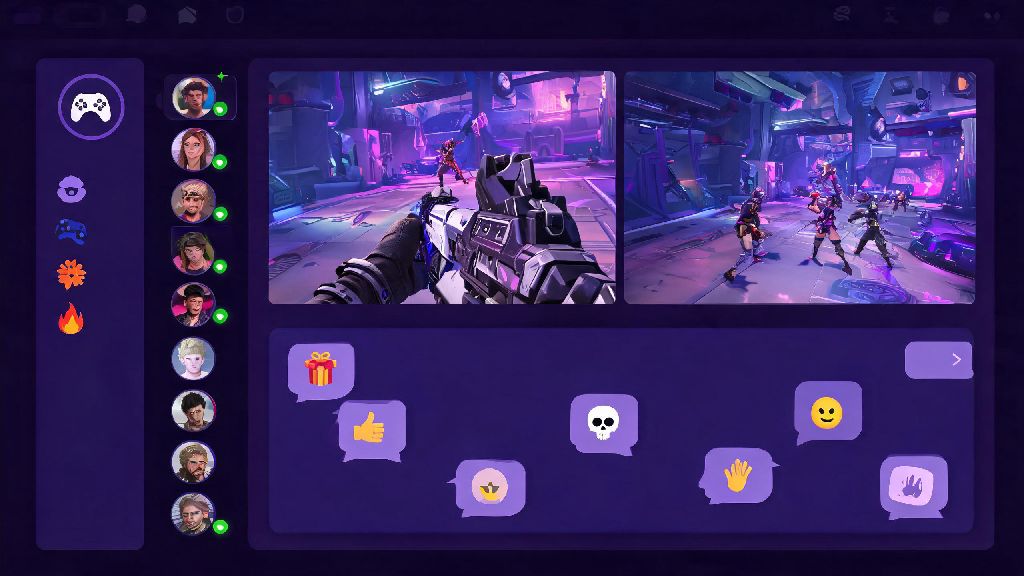
If you’re a new Deadlock player eager to share your ranked climbs, chaotic team fights, or hilarious whiffed abilities with friends, you’ve probably asked “can i stream Deadlock on Discord” at least once. The short answer is yes, but getting it to run smoothly without lag, black screens, or missing audio takes a little bit of pre-stream prep. I’ve streamed over 40 hours of Deadlock on Discord for my friend group in the last few months, so I’ve tested every setting and fixed every common error you might run into. This guide will walk you through exactly what you need to do to get your stream up and running in minutes, no fancy software required.
Can I Stream Deadlock on Discord Without Extra Software?
You don’t need third-party tools like OBS or Streamlabs to stream Deadlock on Discord, unless you want to add custom overlays, alerts, or stream to multiple platforms at the same time. Valve added Deadlock to Discord’s verified game list shortly after its early access launch, so the platform’s native game capture tool recognizes it automatically. Discord’s native game capture is optimized for Deadlock, so you won’t see the random black screens that happen with unapproved indie games or niche titles.
I’ve used both native capture and OBS for Discord streams, and native works perfectly fine if you’re only streaming for 5-10 friends. If you’re hosting a public watch party for 50+ people, you might get slightly better consistency with OBS, but it’s absolutely not a requirement. The only extra thing you’ll need is a stable internet connection, and a PC that can run Deadlock at a consistent frame rate while sharing your screen.
Step-by-Step Setup for Streaming Deadlock on Discord
Setting up your stream takes less than 3 minutes if you follow these steps exactly, and you won’t have to mess with advanced settings unless you want to. I’ve tested this process on both Windows and Mac devices, and it works the same across both operating systems:
I used to make the mistake of opening Discord first all the time, and half the time Deadlock wouldn’t show up in the capture list. Switching the order I launch apps fixed that issue 100% of the time, so don’t skip that small step. Also, you can adjust stream quality mid-stream if viewers are complaining about lag, without having to restart your entire feed.
Common Deadlock Discord Stream Issues (And How to Fix Them)
Even if you follow the setup steps perfectly, you might run into small issues every once in a while, most of which have super simple fixes. The most common issue I hear about is the black screen, where viewers can only see a black box instead of your gameplay. That almost always happens if you’re running Deadlock as an administrator and Discord isn’t, so Discord doesn’t have permission to capture the game window. The fix is simple: either run both apps as admin, or turn off admin mode for Deadlock entirely.
Another common issue is missing game audio, where viewers can hear your mic but not the sounds from Deadlock. That’s usually because you have your audio output set to two different devices, so Discord can’t pick up the game audio. Go to Discord’s voice settings, and make sure your game audio input is set to the same device you use for Deadlock. If that doesn’t work, restart both apps and try again. Turn off hardware acceleration in Discord if you’re streaming from a lower-end PC, as it uses extra resources that can cause stutters both for you and your viewers.
If you’re having issues with viewers hearing your in-game voice chat, that’s because Discord’s default capture only picks up game audio, not voice chat from apps like Steam or Discord itself. Go to your stream settings, enable “share audio from all applications” or add your voice chat app as a secondary audio source to fix that. The black screen issue was the most annoying one I dealt with when I first started streaming Deadlock, and it took me three days to figure out the admin mode mismatch was the cause. Don’t waste that time, just check that first if you run into it.
Best Settings for High-Quality Deadlock Streams on Discord
If you have Discord Nitro, you can stream 1080p 60fps with no extra work, but even without Nitro, you can get great 720p 30fps streams that look perfectly clear for small groups. Set your stream frame rate to match Deadlock’s in-game frame rate – if you’re running the game at 60fps, don’t stream at 30fps, it will make the feed look choppy and hard to follow during fast team fights.
Turn off in-game VSync when streaming, as it can cause sync issues between your game and the stream feed that make movement look weird for viewers. If you’re streaming ranked games, you might want to turn on streamer mode in Deadlock first, to hide your opponent’s usernames and avoid stream sniping. I also recommend lowering your in-game graphics settings by one tier if you notice your own game lagging while streaming – even high-end PCs can struggle to run Deadlock at max settings and stream at the same time.
If you’re playing with a full team, you can also adjust your audio levels so your mic is slightly louder than the game audio, so viewers can hear your callouts clearly over the chaos of team fights. I usually set my game audio to 70% and my mic to 100% in Discord’s stream settings, which works perfectly for my group. You don’t need a fancy mic to sound good either, most built-in laptop mics work fine for small streams, as long as you’re not in a super noisy room.
At the end of the day, if you were wondering can i stream Deadlock on Discord, the answer is a resounding yes, and it’s one of the easiest ways to share your gameplay with friends without the hassle of setting up a public stream on other platforms. You don’t need fancy equipment or paid software to get a great feed, just a few small setting tweaks to avoid common errors. Next time you’re about to queue for a Deadlock match, hop into a Discord voice channel with your friends and hit go live – you’ll be able to share all your best plays (and worst whiffs) in seconds.