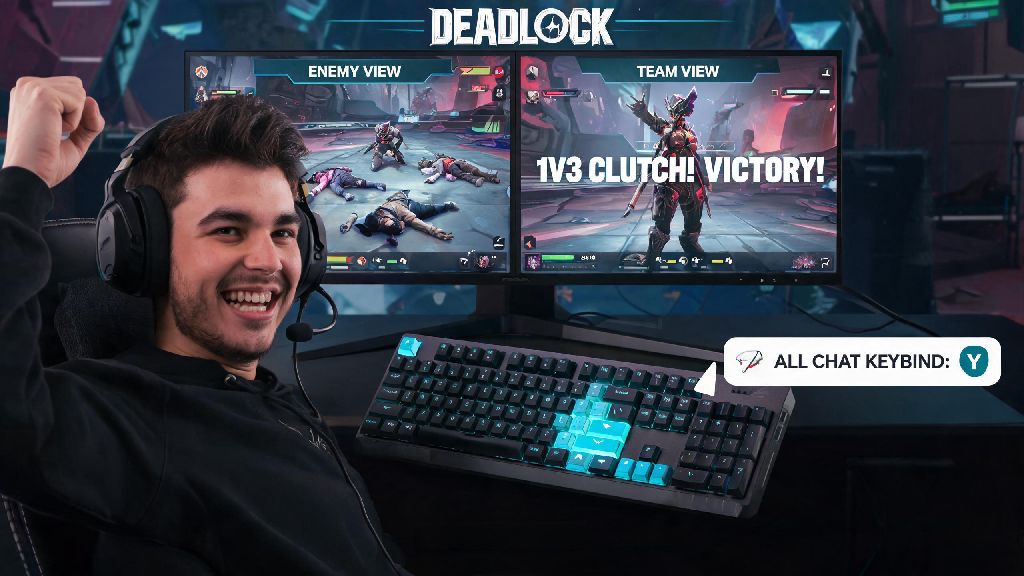
If you’ve ever landed a perfect 1v3 clutch in Deadlock and wanted to tease the enemy team about it, or ask an opponent where they found that cool skin, you’ve probably wondered how to type in all chat deadlock. A lot of new players struggle with this at first, because the default all chat setting isn’t as obvious as it is in other MOBA titles. I’ve spent hundreds of hours playing Deadlock since its launch, and I’ve helped dozens of my friends fix their all chat issues, so I’m breaking down exactly what you need to do to get it working, plus common mistakes to avoid. I’ve run into this issue myself too, right after my first few matches – I kept pressing the wrong key and sending memes to my team instead of the enemy squad.
Step-by-Step Guide to Type in All Chat in Deadlock
The process has two key parts, and you can’t skip either if you want all chat to work properly. First, you have to enable the feature in your game settings, then you use the correct keybind to pull up the all chat input box mid-match. You don’t have to exit a live game to adjust these settings either, which is a nice quality of life feature most players don’t know about.
Start by opening your settings menu, either from the main lobby or mid-match by pressing Escape. Navigate to the “Comms” tab, which sits right next to the Audio settings section. Look for the toggle labeled “Allow cross-team all chat” and switch it on. You only need to enable this setting once, unless a game update resets your preferences, so you won’t have to repeat this step every time you log in. Save your changes before exiting the menu.
Once the setting is enabled, the default keybind to open all chat mid-match is Shift + Enter. When you press that combination, you’ll see a small [All] tag appear to the left of the text input box, so you know your message will be visible to every player in the lobby, not just your four teammates. Type your message and hit Enter to send it. If Shift + Enter feels awkward for your keyboard setup, you can rebind the all chat key in the Controls tab of the settings menu, under the Chat section. Many players bind it to a side mouse button for faster access during fast-paced matches.
Common Reasons All Chat Isn’t Working in Deadlock
Even if you follow the steps above, you might run into situations where all chat won’t send your messages. These issues are almost always easy to fix, once you know what to look for. I’ve compiled the most frequent problems I’ve seen players run into, plus quick fixes for each:
For account setting issues, just go to your main profile page, open the Privacy tab, and make sure “Allow cross-team communication” is toggled on. For keybind conflicts, head to the Controls tab and search for the all chat bind to check if it’s assigned to the key you expect. If you have an active chat penalty, you’ll see a notification in your in-game inbox with the length of the restriction, and you can submit a support ticket if you believe the penalty was issued in error. Most small all chat bugs are also fixed by a quick game restart, so that’s always a good first step if nothing else seems wrong.
Best Practices for Using All Chat in Deadlock
All chat is meant to make matches more fun, not add stress to your gameplay, so following a few simple unwritten rules will make the experience better for you and everyone else in the lobby. The Deadlock community is generally pretty laid back, but there are still boundaries you should respect to avoid getting reported or penalized.
Never use all chat to harass or insult other players, even if you’re frustrated about a lost team fight or a gank. The game’s automated moderation system picks up on slurs, insults, and toxic language very quickly, and you can get a temporary or permanent chat ban for repeated violations. Most players use all chat to joke about missed skill shots, compliment good plays from the enemy team, or ask for build tips after a match, and that’s exactly what it’s designed for.
Double check the chat prefix before sending a message, especially if you’re typing quickly during a tense match. It’s incredibly easy to accidentally switch to all chat and share your team’s gank plan with the entire lobby, which can cost you the round. If you’re playing ranked, you might even want to turn all chat off entirely to avoid that risk, unless you only use it between rounds when there’s no active gameplay happening.
If you start receiving toxic messages from an enemy player, you don’t have to engage or turn off all chat entirely. You can mute individual players by opening the scoreboard, clicking on their name, and selecting “Mute Chat” from the dropdown menu. That way you can still talk to other friendly players in the lobby without seeing their messages.
Customizing All Chat Settings to Fit Your Playstyle
The default all chat setup works fine for most players, but you can tweak it to match how you play the game, whether you’re a casual player who just wants to joke around or a competitive player who wants minimal distractions. You don’t need any mods or third party tools to make these changes, they’re all built directly into the game’s settings menu.
You can adjust all chat visibility to only show messages after matches if you don’t want to get distracted mid-game but still want to chat with the enemy team once the final objective is taken. This setting is located in the Comms tab, under the “All Chat Visibility” dropdown menu. You can also set it to hide all emote messages if you don’t want to see spam during matches, while still allowing text messages to come through.
If you stream your Deadlock gameplay, you might want to turn off all chat visibility entirely for your stream overlay, while still keeping it enabled for yourself. You can do this in the Stream tab of the settings menu, by toggling “Hide All Chat from Stream” on. That way you don’t have to worry about toxic messages popping up on your stream for your viewers to see, while you can still chat with other players normally.
You can also set custom filters for all chat, to block messages that contain specific words or phrases you don’t want to see. This is a great option if you’re playing with younger family members, or just want to avoid certain types of language in your chat box. You can add or remove filtered words at any time in the Comms tab, under the Chat Filters section.
At the end of the day, learning how to type in all chat deadlock is a small quality of life change that can make your matches a lot more fun, whether you’re bonding with the enemy team over a mutual bad play or celebrating a win together. You don’t have to use it if you prefer to focus only on your team, but it’s a nice feature to have access to when you want it. If you run into issues that aren’t covered here, try restarting your game or verifying your game files first, as most small bugs are fixed with that simple step. Don’t be afraid to experiment with the settings to find a setup that works best for the way you play.