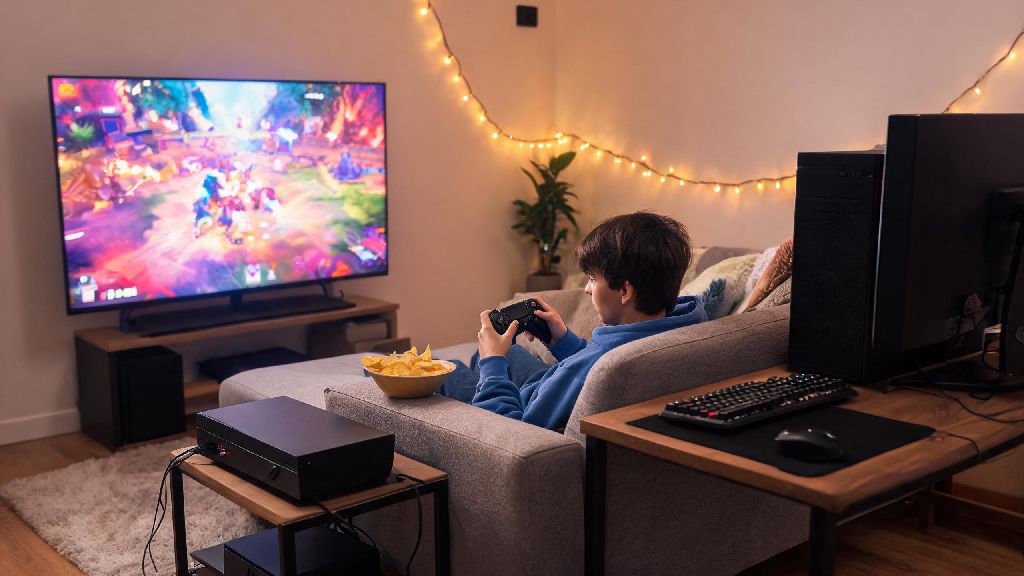
If you’re the type of player who prefers couch gaming, suffers from wrist strain with keyboard and mouse, or just grew up playing console games, you’ve probably asked “can I play Deadlock with controller” within minutes of booting up Valve’s new hero shooter-MOBA hybrid for the first time. Deadlock’s fast-paced, ability-focused gameplay feels like it could work well with a controller, but a lot of new players aren’t sure if the feature is supported yet. This guide breaks down everything you need to know, from official support status to setup hacks, pros and cons, and tweaks to make controller play feel as smooth as possible.
Can I Play Deadlock With Controller? Official Support Status First
As of the latest game updates, Deadlock does not have full native controller support built into the game yet, but that doesn’t mean you can’t get it working. Valve has confirmed official controller support is in active development, and the team has been rolling out partial input updates every few weeks to test functionality. The hold-up for full support is mostly tied to the game’s wide range of hero abilities and menu systems, since the devs want to make sure mappings feel natural for every character instead of rushing a half-baked implementation.
Right now, you can use Steam Input to map all in-game gameplay actions to a controller, even without native support. Menu navigation still requires a mouse and keyboard for now, but once you load into a match, all movement, ability, ping, and communication actions work perfectly with a properly mapped controller. If you run into issues while setting up to play Deadlock with controller, first try restarting both Steam and your controller to reset the input connection, as temporary glitches are common with Steam Input workarounds.
Compatible Controllers for Deadlock Play
Nearly all mainstream controllers work with Deadlock via Steam Input, as long as Steam recognizes the device first. You don’t need any fancy third-party mapping software, which is a huge plus because unvetted mapping tools can sometimes trigger Deadlock’s anti-cheat system. The most reliable controllers for Deadlock include:
You don’t need any special third-party software outside of Steam to get these controllers working, which saves you the hassle of downloading sketchy tools that can put your account at risk. If you’re experiencing input lag with a Bluetooth connection, switch to a wired USB connection to eliminate latency entirely, which is especially important for fast-paced matches.
Step-by-Step Setup for Controllers in Deadlock
Setting up a controller for Deadlock only takes a few minutes, even if you’ve never used Steam Input before. Start by opening your Steam library, right-clicking on Deadlock, selecting Properties, and navigating to the Controller tab. From the dropdown menu, select “Enable Steam Input” instead of using the default game settings, which will override the game’s native input restrictions.
Once you launch Deadlock, go to the Controls tab in the settings menu, and you’ll see an option to customize controller inputs. You can map each action manually to fit your playstyle, or you can browse community-made controller profiles that other players have shared publicly. The most popular community profiles already have optimal mappings for hero abilities, movement, and ping commands, so you don’t have to build everything from scratch if you don’t want to.
You can also adjust analog stick sensitivity and dead zones in the Steam Input menu to make movement feel more responsive, especially if you’re used to console shooter sensitivities. Always make sure to download profiles from trusted, highly rated creators to avoid wonky mappings that ruin your gameplay. Remember that menu navigation still doesn’t work with controller right now, so you’ll need to keep your mouse nearby to select heroes, adjust builds, and navigate lobbies before matches. If you’re playing on a Steam Deck, Deadlock runs great out of the box with the built-in controls, no extra setup needed at all.
Pros and Cons of Using a Controller for Deadlock
Controller play works great for some Deadlock players, but it’s not the best fit for everyone, so it’s important to weigh the benefits and drawbacks before you commit to a setup. The biggest upsides include more comfort during long play sessions, less wrist strain for players with repetitive stress injuries, and a much better experience if you’re playing on a TV from the couch instead of sitting at a desk. A lot of players also find that controller movement feels smoother for tank and support heroes that don’t require super precise skill shots.
That said, there are some clear downsides to keep in mind. Controller input is slightly slower than keyboard and mouse for fast, precise actions like long-range skill shots and quick inventory swaps, so if you’re playing competitive ranked mode, you may be at a small disadvantage against MKB players. You also still need a mouse nearby to navigate menus, which can be annoying if you’re playing far from your desk. Some heroes with very complex ability kits also feel clunky on controller, since you only have a limited number of buttons to map actions to.
If you’re a casual player who only logs in a few times a week to play with friends, choosing to play Deadlock with controller won’t hold you back at all. I’ve tested controller play for dozens of unranked matches, and it’s totally fun and viable for casual play, but I switch back to MKB when I’m grinding ranked to get that extra precision for skill shots and fast reaction plays.
So to wrap up, if you’ve been wondering can I play Deadlock with controller, the answer is yes, with a few simple Steam Input setup steps, even before full official support drops. It’s perfect for casual play, couch co-op sessions, or players who just prefer the feel of a controller over keyboard and mouse. If you’re waiting for full native support, Valve is rolling out updates every few weeks, so it’s likely to be available as a default option very soon. Give it a test run with a high-rated community profile first, and adjust the button mappings and sensitivity to fit your playstyle before jumping into a public match.